

Review Approvals in MPCVault
- Visit console.mpcvault.com.
- Go to Wallets.
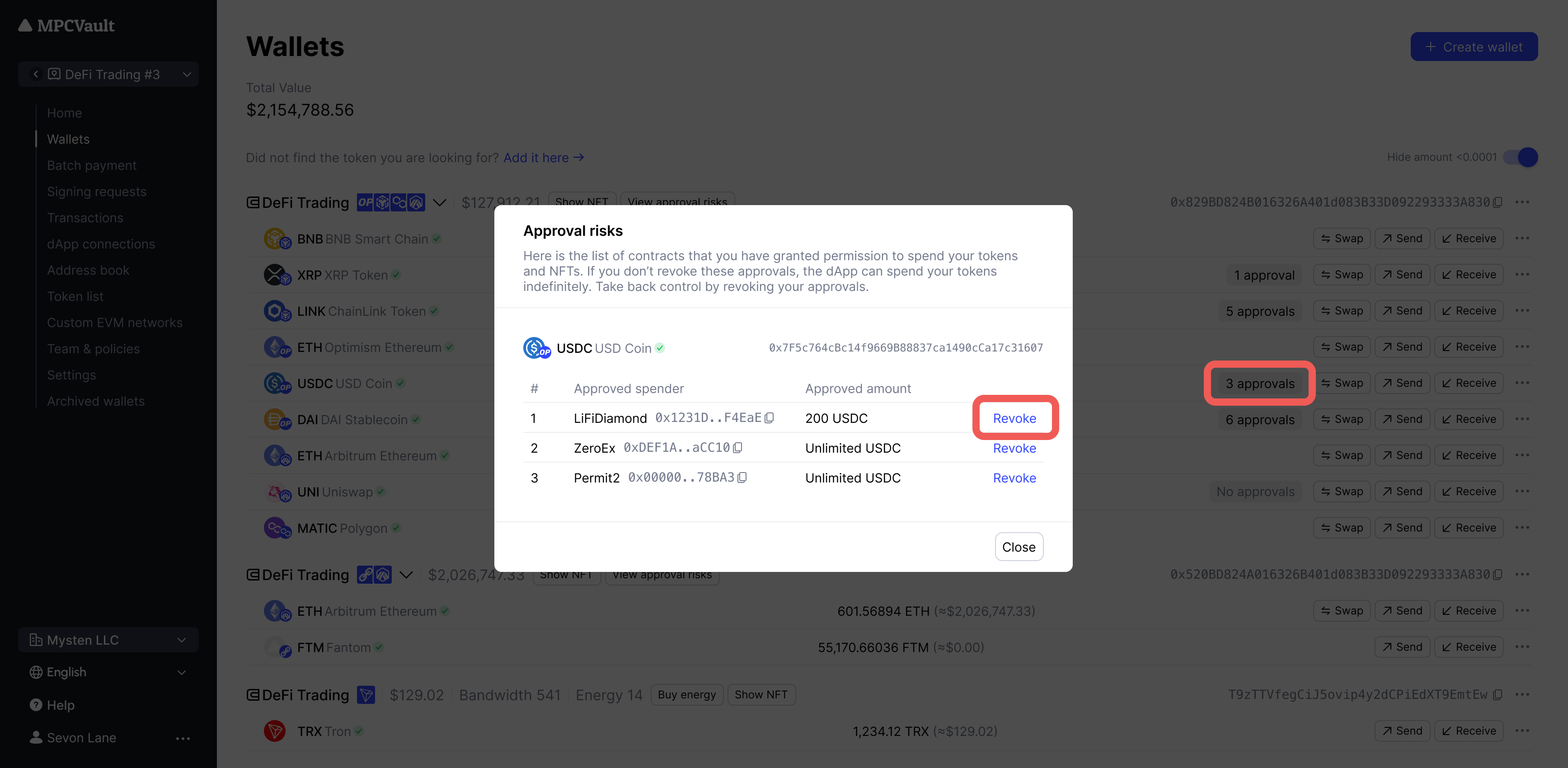
- Click the x approval button on any token.
- Review the list of approved contracts.
- Click Revoke to submit a signing request.
- Approve and sign in the MPCVault app.
Review Approvals in Revoke.cash
- Go to Wallets in MPCVault.
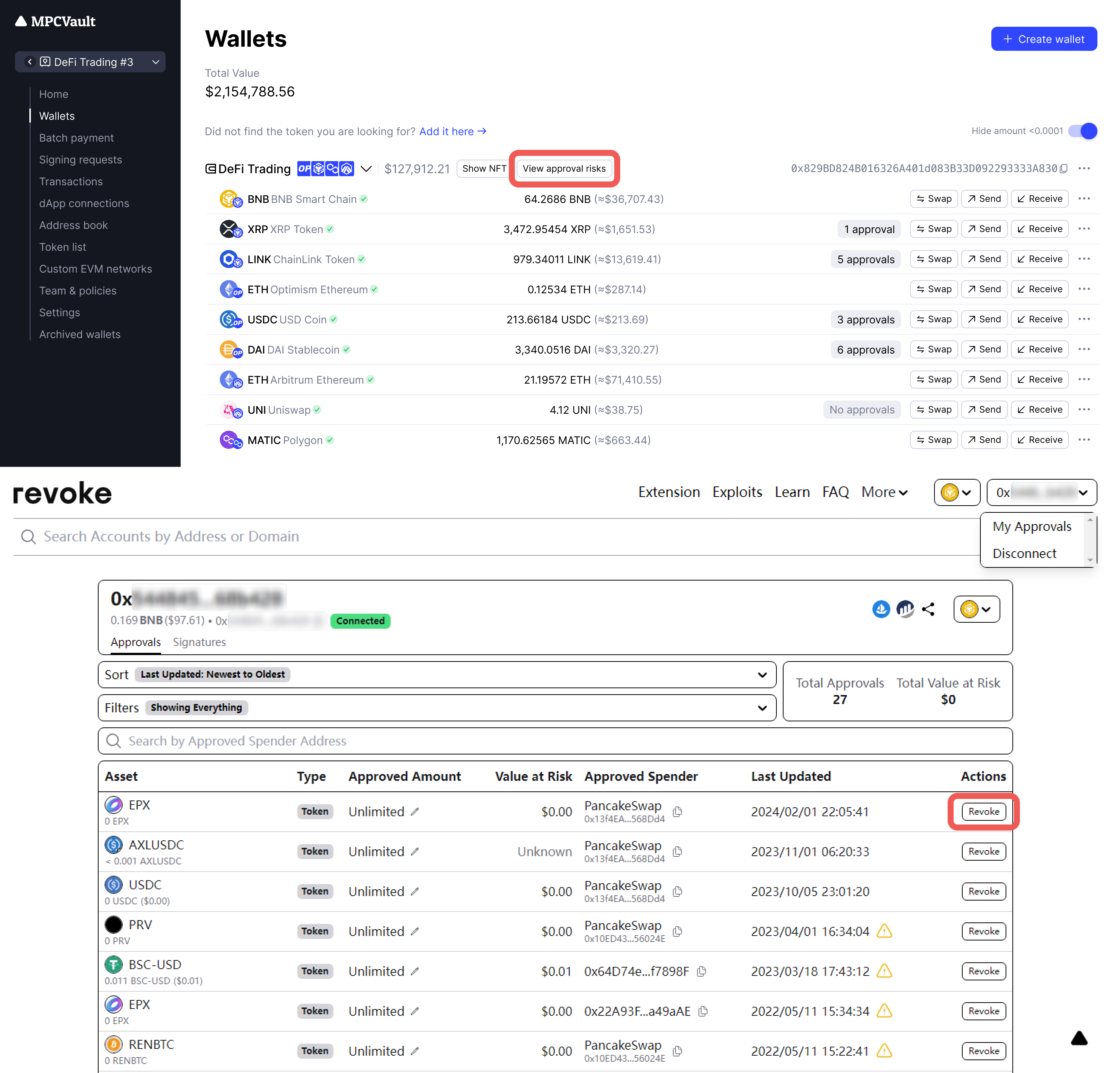
- Click View approval risks to open Revoke.cash.
- Connect your wallet to view all approvals.
- Revoke or modify approval amounts as needed.
Best practices:
- Review approvals monthly, especially after using new dApps
- Revoke unused or outdated authorizations immediately
- Avoid setting unlimited approval amounts