

What are gas fees on EVM chains?
Gas fees are payments made to the network to execute a transaction. They incentivize miners or validators to process and validate transactions. Below is an explanation of the key parameters: Max Fee: The maximum amount you’re willing to pay per unit of gas. After the transaction is processed, any unused portion will be refunded. The total amount of the transaction is calculated by multiplying the max fee by the gas limit. Max Priority Fee: An optional tip paid to miners or validators to prioritize your transaction. Transactions with higher priority fees are more likely to be confirmed faster. Gas Limit: The maximum amount of gas units your transaction can consume. Complex transactions (e.g., interacting with smart contracts) require higher gas limits.How to set gas fees
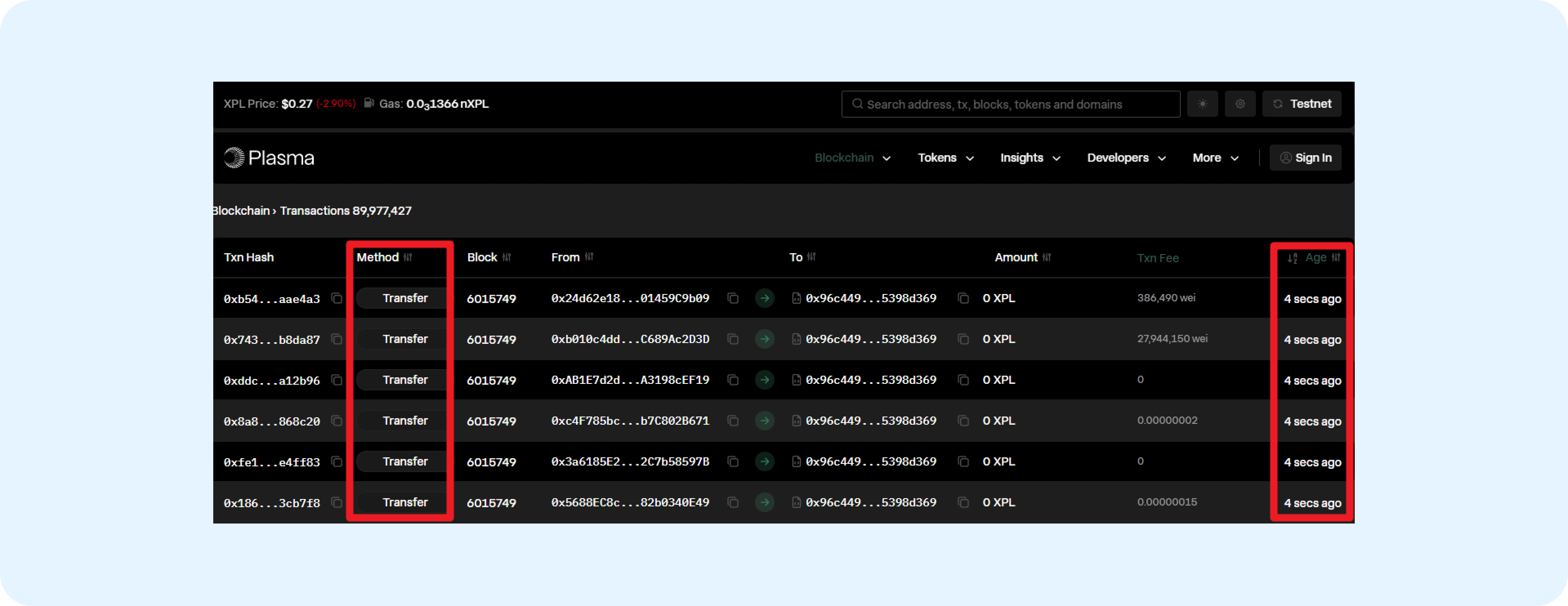
To manually set gas fees, you can use a blockchain explorer to check recent network activity and reference optimal gas prices. Here’s how to do it using Plasma as an example:- Visit Plasma blockchain explorer.
- Find recent successful transactions of the same type (e.g., token transfer, contract interaction) to use as a reference.
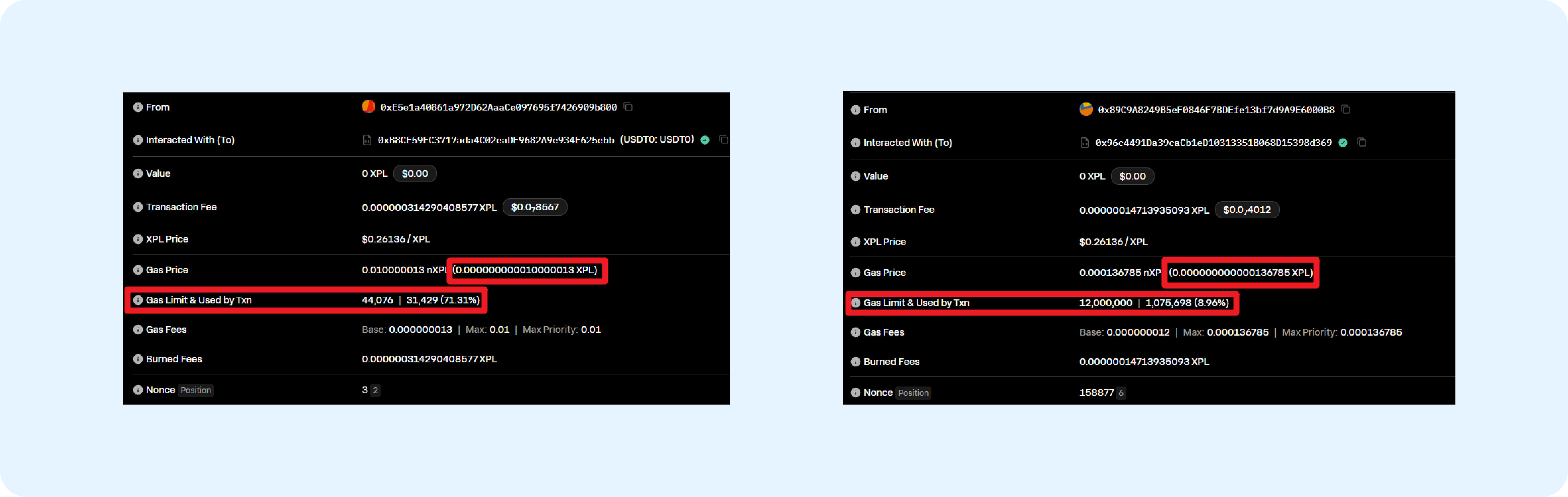
- Open the transaction details and scroll to the “Click to see More” section.
- Locate the “Gas Limit & Usage by Txn” and “Gas Price” fields.
- Use these values as a reference and set your gas fee slightly higher to ensure execution.
- Use this value to set the gas fee in MPCVault when creating or editing your transaction.
What is a nonce?
Nonce is a sequential number assigned to each transaction from your wallet. It ensures transactions are processed in the correct order and prevents duplication or replay attacks.How to set the nonce
To find and set the correct nonce for your transaction, you can use blockchain explorer. Below is an example using Plasma blockchain explorer:- Visit Plasma blockchain explorer.
- Enter your wallet address in the search bar to view your account’s activity and transaction history.
- Locate the most recent transaction sent from your wallet.
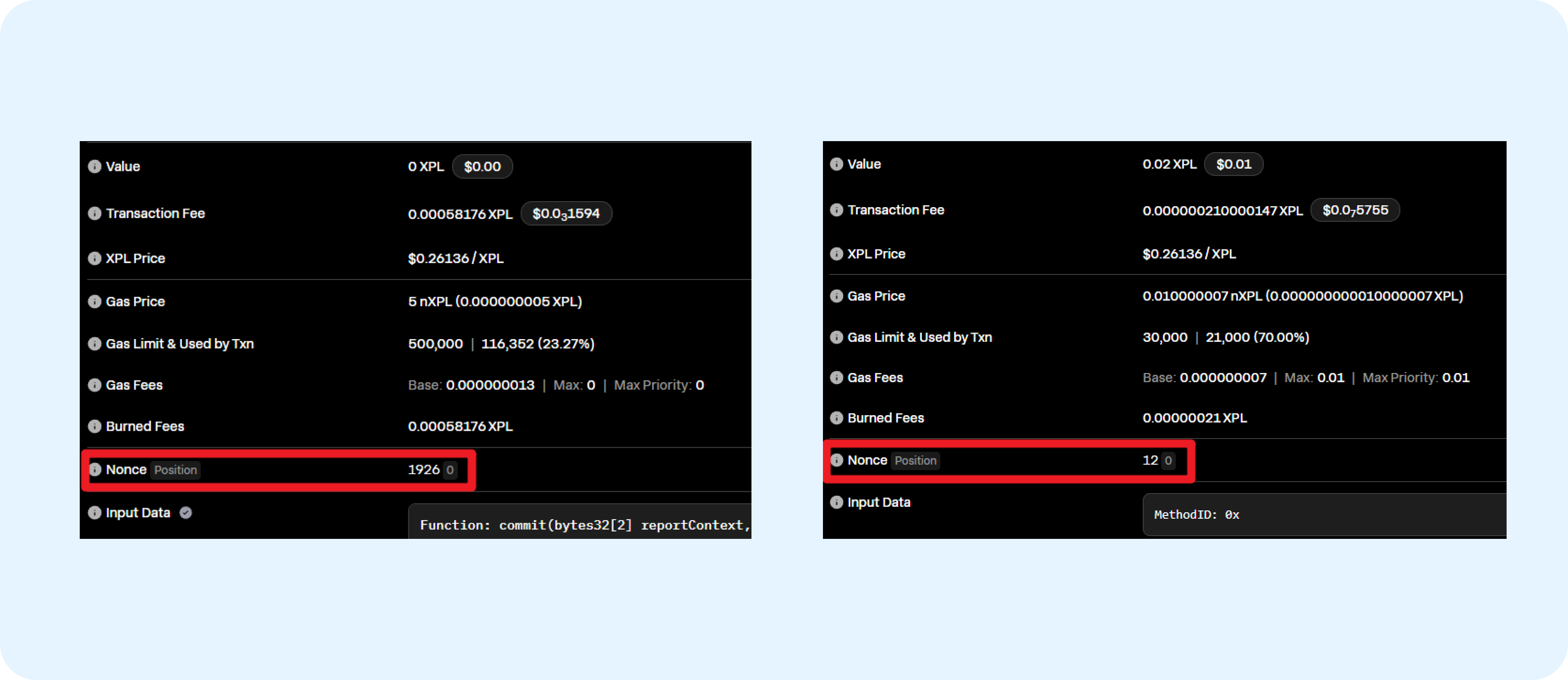
- Open the transaction details and scroll to the “Click to see More” section. Locate the “Nonce” field, which indicates the last used nonce for your wallet.
- Determine the next nonce. If the latest transaction’s nonce is 5, the next transaction should use a nonce of 6.
- Use this value to set the nonce in MPCVault when creating or editing your transaction.
Troubleshooting
If you encounter issues such as failed or stuck transactions, improper gas fee or nonce settings are often the cause. Below are common problems and how to resolve them.Transaction Stuck
Sometimes, a transaction can get stuck and fail to be confirmed due to insufficient gas fees, an incorrect nonce, or inadequate funds. Solution:- Replace with same nonce (if you want to proceed with the transaction):
- Create a new transaction using the same nonce as the stuck transaction.
- Significantly increase gas fees (recommendation: 20–30% higher).
- Sign and send the transaction to replace the stuck one.
- Cancel with same nonce (if you no longer wish to proceed with the transaction):
- Create a new transaction with the same nonce, setting the amount to zero or sending it to yourself.
- Significantly increase gas fees (recommend 20-30% higher)
- Sign and send the transaction to cancel the original stuck transaction.
”Intrinsic gas too low” error
This error occurs when the gas fee is set too low to meet the network’s minimum requirements. Solution:- Use a blockchain explorer to check recent gas fees for similar transactions.
- Set reasonable gas fees based on current network conditions.
”Nonce too low” error
This error occurs when a transaction is submitted with a nonce that has already been used. Solution:- Use a blockchain explorer to find the next available nonce for your wallet.
- Re-initiate your transaction using this correct value.
Nonce gap
If a transaction is submitted with a nonce higher than the next available value, it will remain pending until the gap is resolved. Solution:- Locate your last confirmed nonce via a blockchain explorer.
- Create a new transaction with the next correct nonce (last nonce + 1). A simple transfer to yourself with a standard gas fee is recommended.
- Once this transaction is confirmed, the original stuck transaction will be processed in sequence.