

Choose Your Setup
API Token Only
Start here — all integrations begin with an API token.
- Create and manage wallets
- Query balances and history
- Create signing requests
- Transactions approved manually in app
+ Client Signer
Add later — when you need automation.
- Everything from API Token, plus:
- Execute transactions programmatically
- Automated approval based on your logic
- No manual intervention required
API Token Only (Manual Approval)
With just an API token, you can build integrations where transactions are approved manually by team members in the MPCVault mobile app. Capabilities:- Create and list wallets
- Query balances and transaction history
- Create signing requests
- Monitor transaction status
API Token + Client Signer (Automated Signing)
Adding a client signer enables fully automated transaction execution without manual approval. The client signer runs on your infrastructure and programmatically approves transactions based on your business logic. Additional capabilities:- Execute signing requests programmatically
- Build automated payment workflows
- Handle high-frequency operations
- Implement scheduled transactions
Part 1: Create an API User (Required)
Every API integration starts with creating an API user and obtaining a token.Step 1: Create the API user
- Go to console.mpcvault.com.
- Navigate to the API page (org admin required).
- Click Create an API user.
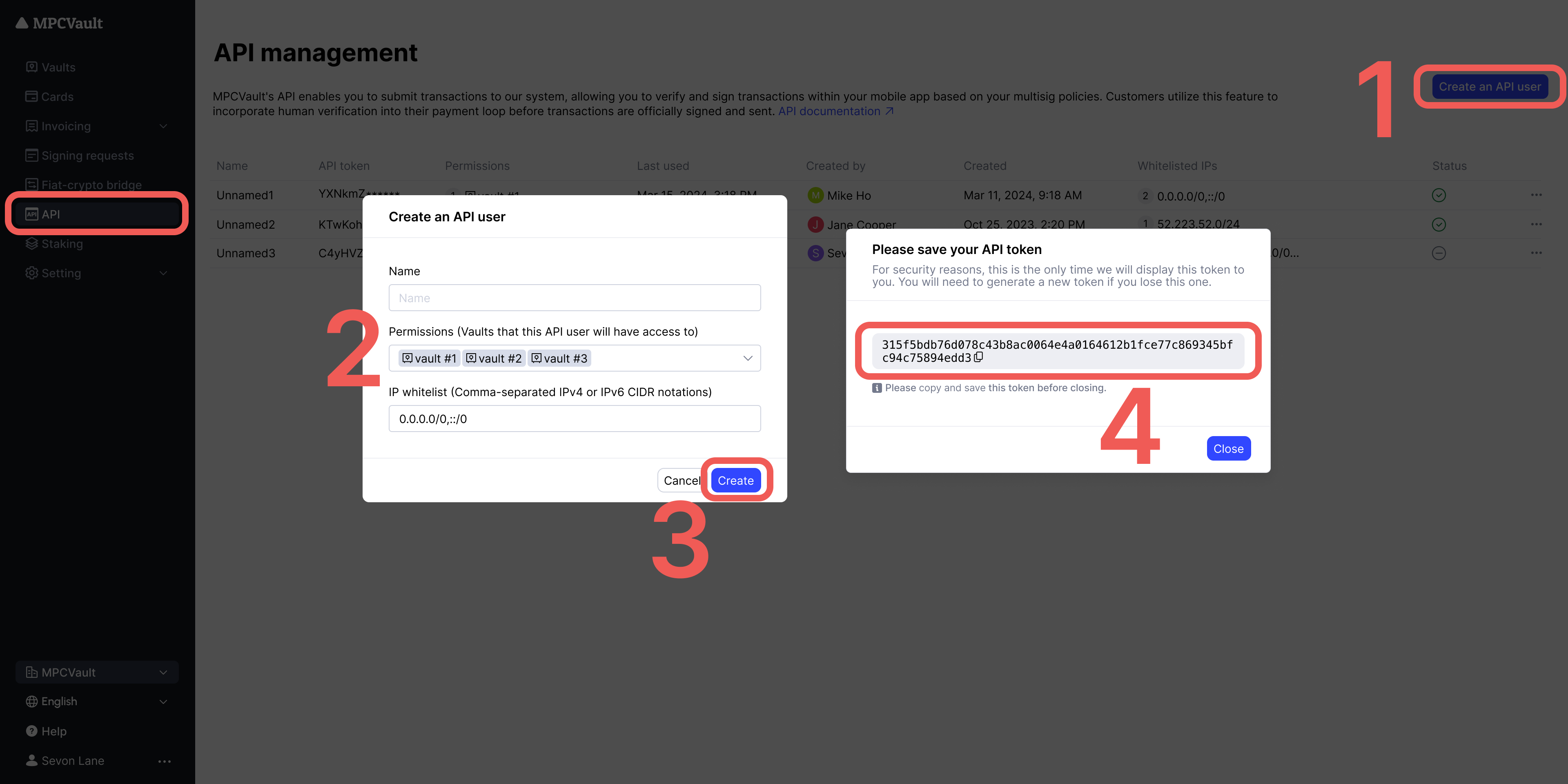
- Fill in the required fields:
- Click Create to generate the API user.
Step 2: Save your API token
After creation, a popup displays your API token. Copy and save it immediately.Step 3: Test your token
Verify your token works by making a test request:What you can do now
Example code and SDKs: GitHub repository
If you only need manual approval for transactions, you’re done here. Continue to Part 2 only if you need automated signing.
Part 2: Set Up the Client Signer (Optional)
Skip this section if you only need manual transaction approval via the MPCVault app.
Client Signer Setup
Complete guide to setting up the client signer, including key generation, Docker deployment, and callback handler implementation.
Custom EVM Chains
To send transactions on custom EVM chains via API:1. Add the chain to your vault
- Go to console.mpcvault.com
- Navigate to the vault’s Custom EVM networks menu
- Add the chain with: chain ID, RPC URL, block explorer URL
2. Add ERC20 tokens (if needed)
- Navigate to the vault’s Token list menu
- Add tokens by contract address
3. Set required parameters
For custom EVM chains, you must explicitly provide:Troubleshooting
For client signer troubleshooting, see the Client Signer Setup guide.