> ## Documentation Index
> Fetch the complete documentation index at: https://docs.mpcvault.com/llms.txt
> Use this file to discover all available pages before exploring further.
# Vault Members & Multisig
> Add team members to vaults and configure multi-signature policies.
## Adding Vault Members
Only vault managers can add members. Invitees must already be part of the organization ([invite members first](/guides/3-how-to-invite-members-to-your-organization/index)).
### Via Web Console
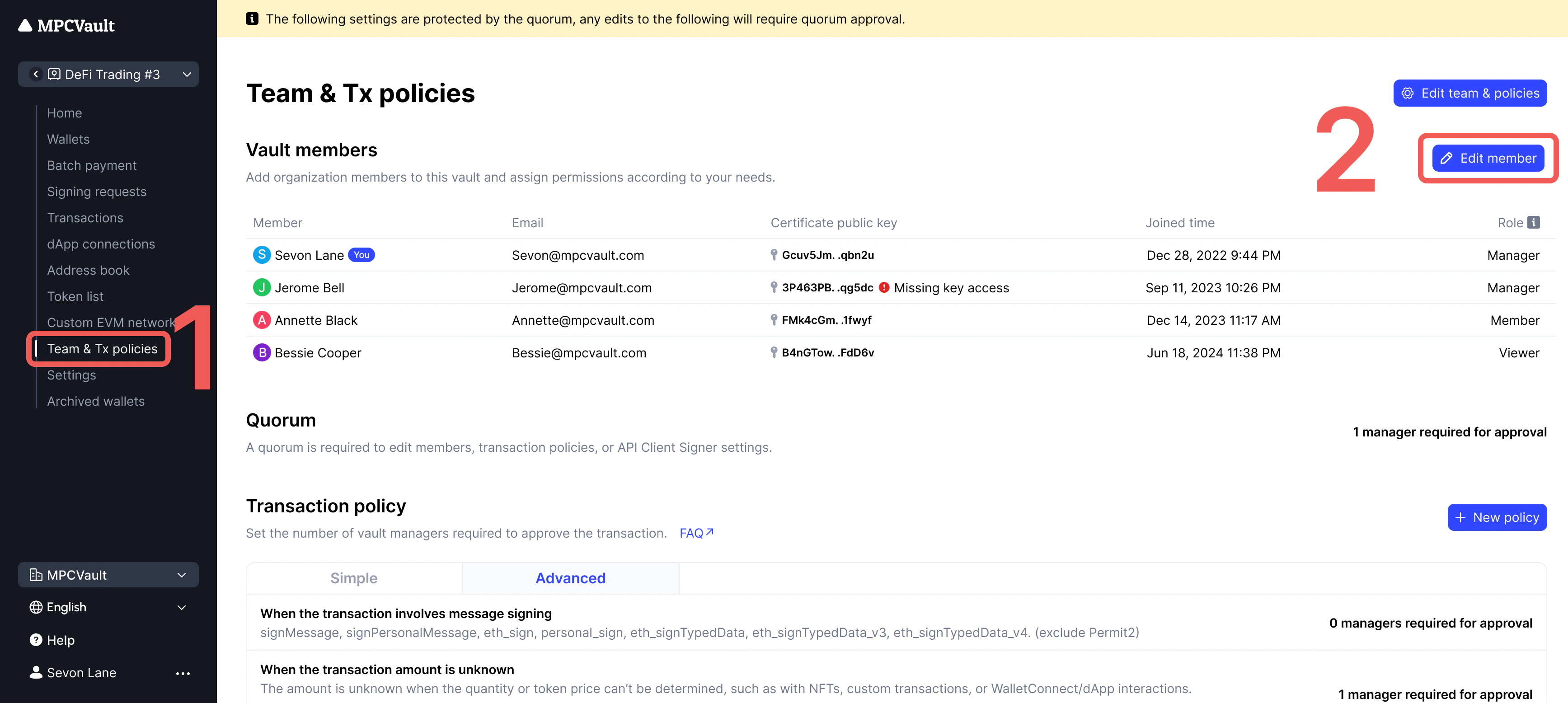
1. Select the vault and go to **Team & Tx policies**.
2. Click **Edit member** > **+ Add vault members**.
 3. Select members, assign roles, and click **Continue** > **Confirm**.
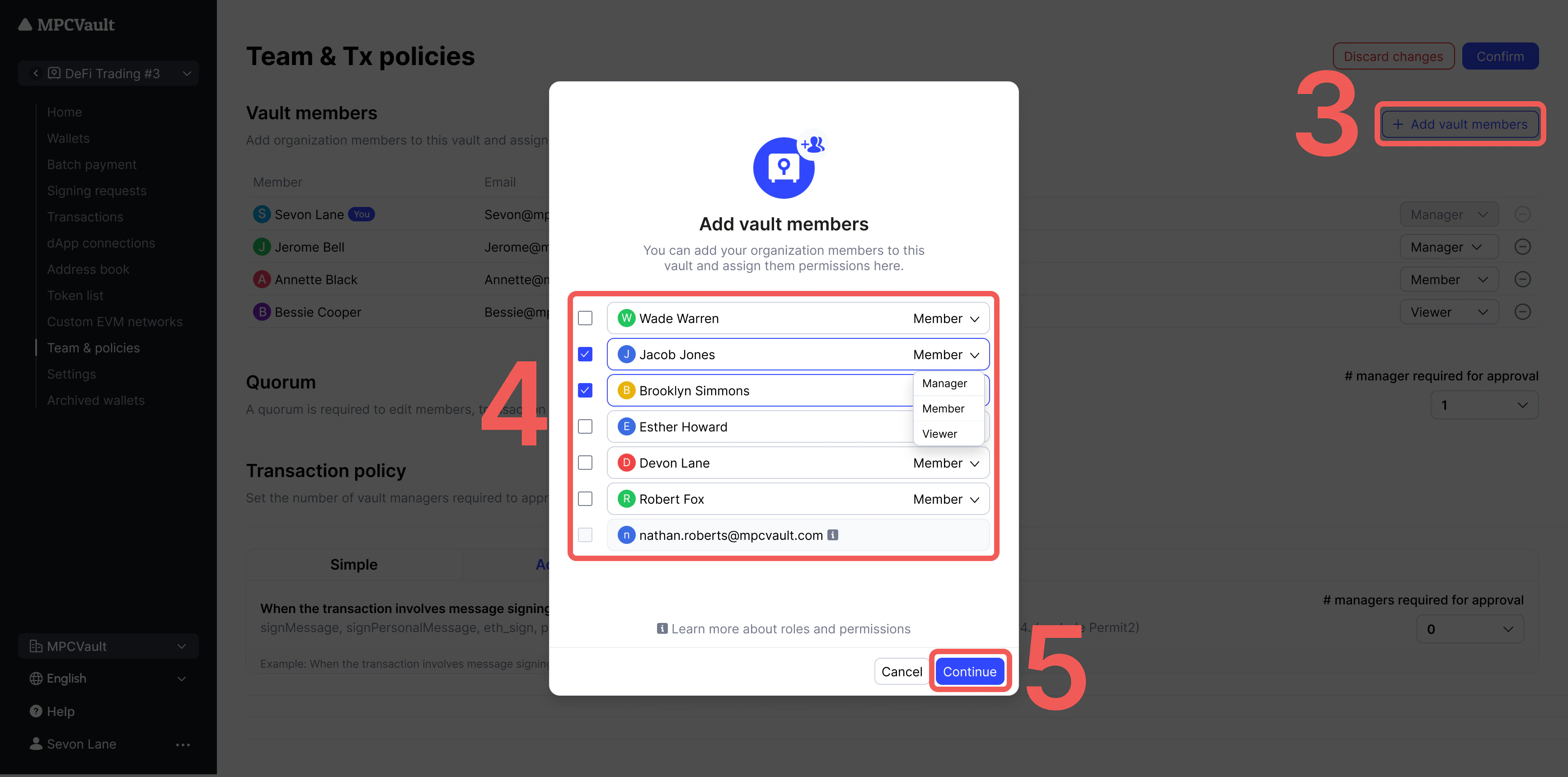 All vault managers receive a **Vault setting update** signing request.
### Via Mobile App
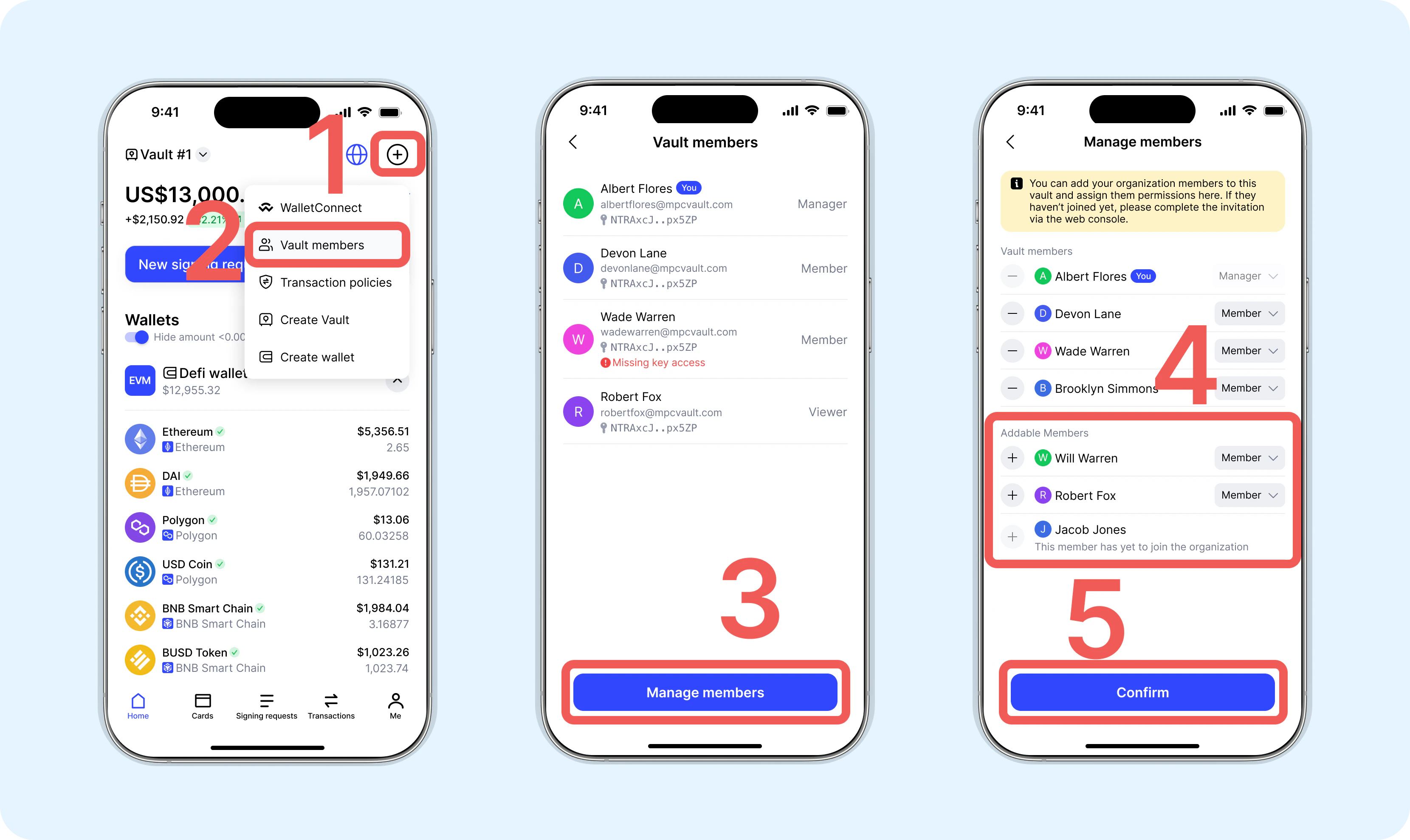
1. Select the vault from the home page.
2. Tap **...** > **Vault members** > **Manage members**.
3. Select members, assign roles, and tap **Confirm**.
All vault managers receive a **Vault setting update** signing request.
### Via Mobile App
1. Select the vault from the home page.
2. Tap **...** > **Vault members** > **Manage members**.
3. Select members, assign roles, and tap **Confirm**.
 ## Configuring Multisig Policies
Set approval requirements based on transaction volume, destination, or type. Each vault can have different policies.
### Setup Steps
1. Go to **Team & Tx policies** and click **+ New policy**.
2. Select the [policy type](/guides/15-vault-transaction-policies/index).
3. Configure the rules and click **Confirm**.
4. Approve the signing request in the app.
The number of required managers cannot exceed the [manager quorum](/guides/16-what-is-a-quorum/index).
### Example
For a reserve vault holding significant funds:
| Daily Volume | Approval Required |
| ------------ | ----------------- |
| \< \$10,000 | Any member |
| ≥ \$10,000 | 3 managers |
***
## How Multisig Works
MPCVault's multisig is implemented through **system-enforced approval policies**, not traditional on-chain multisig.
### Policy Enforcement
When a signing request is created:
1. The MPCVault server checks the transaction against configured policies
2. If the required approvals are not met, the server **refuses to participate** in the MPC signing protocol
3. Only when all policy conditions are satisfied does the server allow the signing to proceed
```mermaid theme={null}
flowchart LR
A[Signing Request] --> B{Policy Check}
B -->|Not Met| C[Server Refuses]
B -->|Met| D[MPC Signing Proceeds]
D --> E[Transaction Signed]
```
### Key Security Model
**MPCVault cannot sign transactions alone.** The server holds only one of three key shares required for signing.
Even though the server enforces policies, it cannot unilaterally sign transactions because:
| Component | Key Share | Role |
| ----------------------- | --------- | -------------------------------------- |
| Your device | Share 1 | You control this share |
| MPCVault (Google Cloud) | Share 2 | Enforces policies, participates in MPC |
| MPCVault (Azure) | Share 3 | Participates in MPC |
All three shares must participate in the MPC computation to produce a valid signature. The server's policy enforcement is an **additional security layer** on top of the cryptographic requirement that you must provide your key share.
### What This Means
* **You remain in control**: No signature is possible without your key share
* **Policies are enforced**: The server won't participate unless your configured rules are met
* **No single point of failure**: Even if the server were compromised, attackers cannot sign without your share
## Configuring Multisig Policies
Set approval requirements based on transaction volume, destination, or type. Each vault can have different policies.
### Setup Steps
1. Go to **Team & Tx policies** and click **+ New policy**.
2. Select the [policy type](/guides/15-vault-transaction-policies/index).
3. Configure the rules and click **Confirm**.
4. Approve the signing request in the app.
The number of required managers cannot exceed the [manager quorum](/guides/16-what-is-a-quorum/index).
### Example
For a reserve vault holding significant funds:
| Daily Volume | Approval Required |
| ------------ | ----------------- |
| \< \$10,000 | Any member |
| ≥ \$10,000 | 3 managers |
***
## How Multisig Works
MPCVault's multisig is implemented through **system-enforced approval policies**, not traditional on-chain multisig.
### Policy Enforcement
When a signing request is created:
1. The MPCVault server checks the transaction against configured policies
2. If the required approvals are not met, the server **refuses to participate** in the MPC signing protocol
3. Only when all policy conditions are satisfied does the server allow the signing to proceed
```mermaid theme={null}
flowchart LR
A[Signing Request] --> B{Policy Check}
B -->|Not Met| C[Server Refuses]
B -->|Met| D[MPC Signing Proceeds]
D --> E[Transaction Signed]
```
### Key Security Model
**MPCVault cannot sign transactions alone.** The server holds only one of three key shares required for signing.
Even though the server enforces policies, it cannot unilaterally sign transactions because:
| Component | Key Share | Role |
| ----------------------- | --------- | -------------------------------------- |
| Your device | Share 1 | You control this share |
| MPCVault (Google Cloud) | Share 2 | Enforces policies, participates in MPC |
| MPCVault (Azure) | Share 3 | Participates in MPC |
All three shares must participate in the MPC computation to produce a valid signature. The server's policy enforcement is an **additional security layer** on top of the cryptographic requirement that you must provide your key share.
### What This Means
* **You remain in control**: No signature is possible without your key share
* **Policies are enforced**: The server won't participate unless your configured rules are met
* **No single point of failure**: Even if the server were compromised, attackers cannot sign without your share