> ## Documentation Index
> Fetch the complete documentation index at: https://docs.mpcvault.com/llms.txt
> Use this file to discover all available pages before exploring further.
# Invite Members
> Add team members to your organization.
## Inviting Members
Owners and admins can invite new members to the organization.
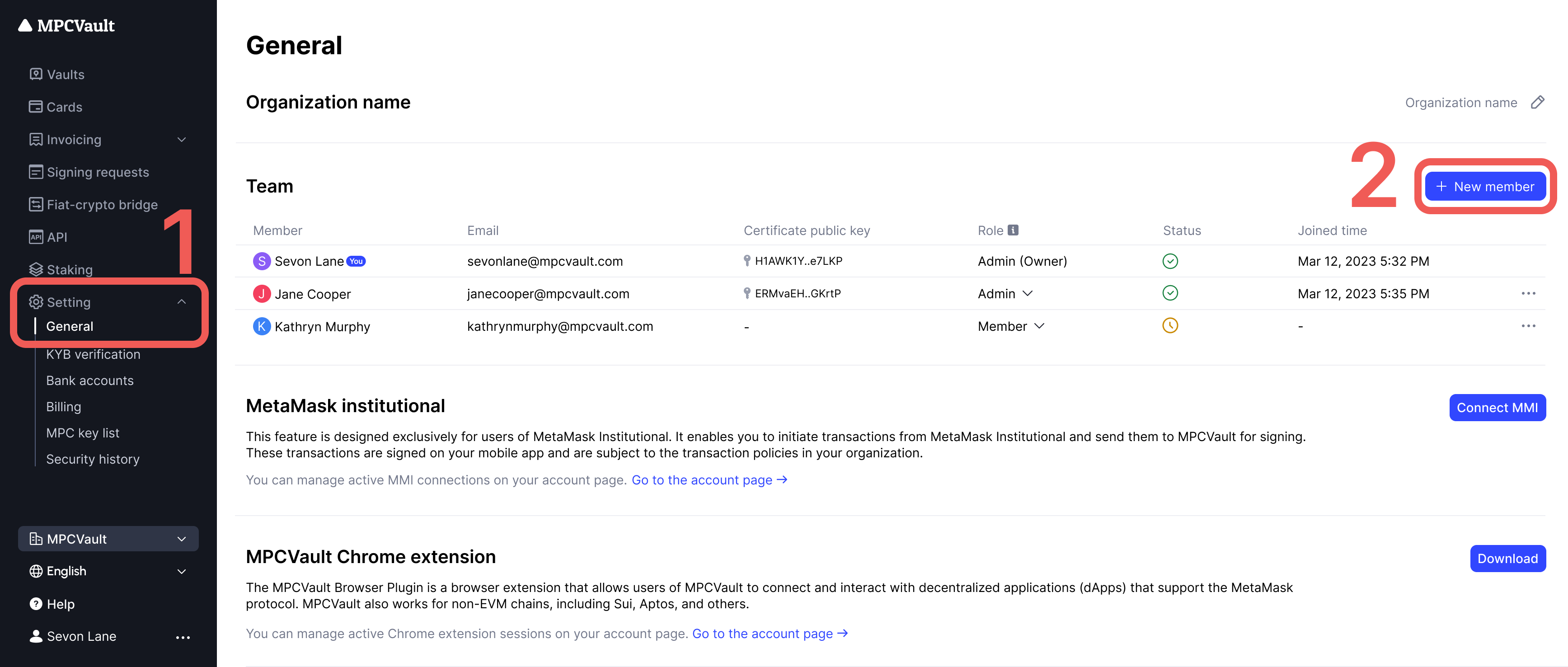
1. Go to **Settings** in the side menu.
2. On the **General** page, click **+ New member**.
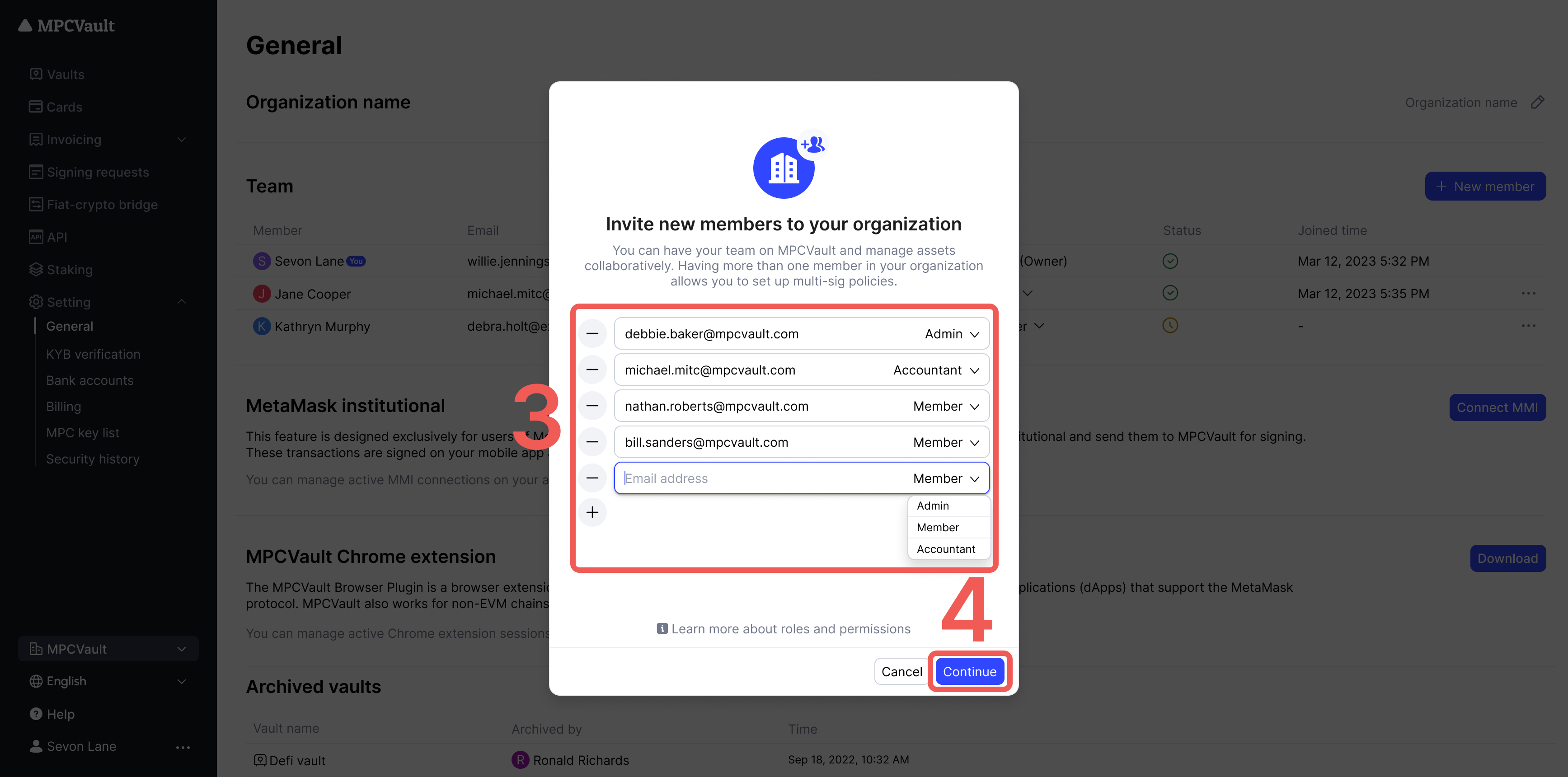
 3. Enter the invitee's email and select their role.
4. Click **Send invites**.
3. Enter the invitee's email and select their role.
4. Click **Send invites**.
 Once invitees accept and set up their account, they join your team with the assigned role permissions.
## Accepting an Invitation
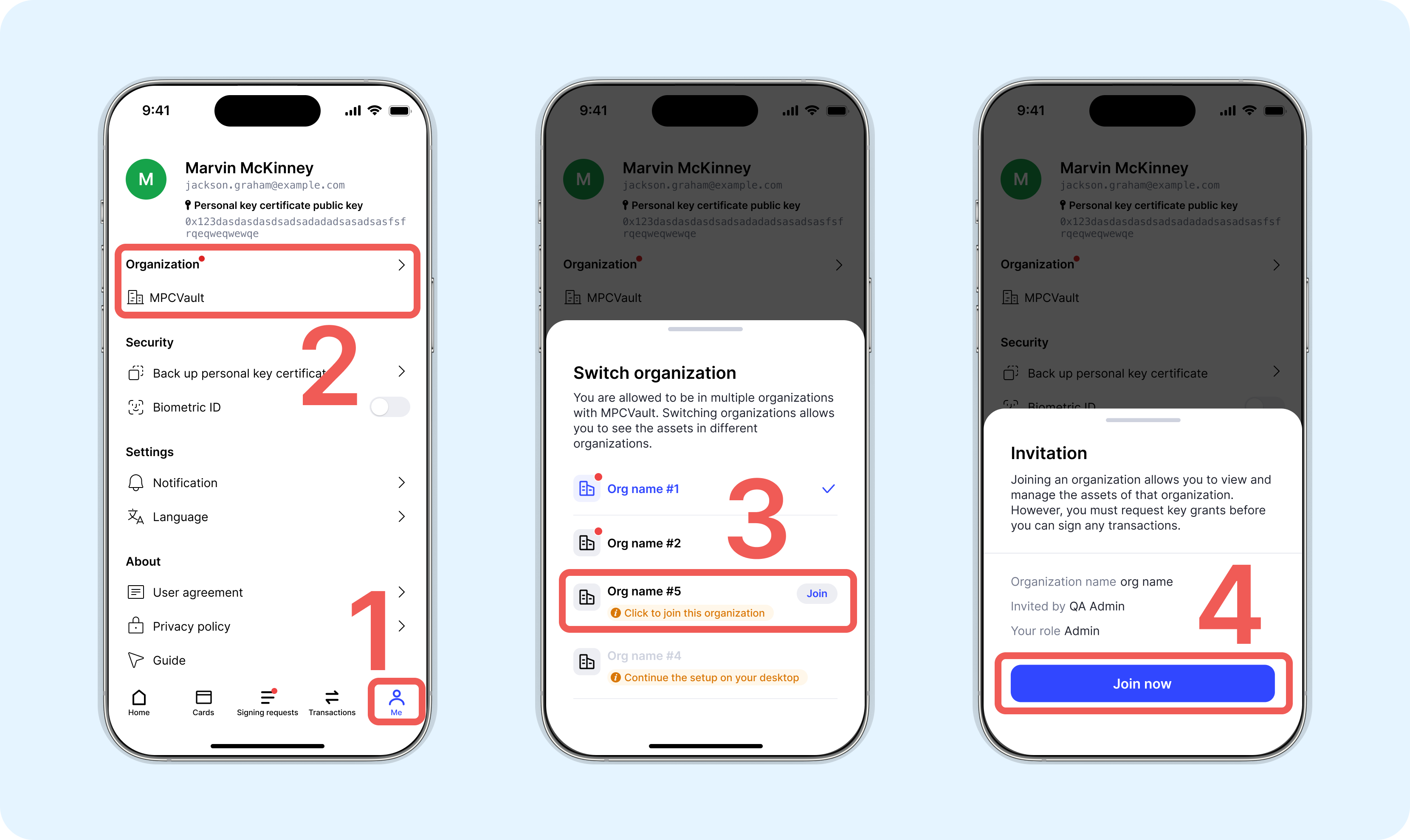
1. Open the MPCVault app.
2. Go to **Me** > **Organization**.
3. Select the organization and tap **Join now**.
Once invitees accept and set up their account, they join your team with the assigned role permissions.
## Accepting an Invitation
1. Open the MPCVault app.
2. Go to **Me** > **Organization**.
3. Select the organization and tap **Join now**.
 If you received an invitation but don't see the organization listed, try switching networks or restarting the app.
## Deactivating a Member
Deactivated members cannot log in to your organization. This does not change vault signing policies—ensure the member has transferred any necessary rights first.
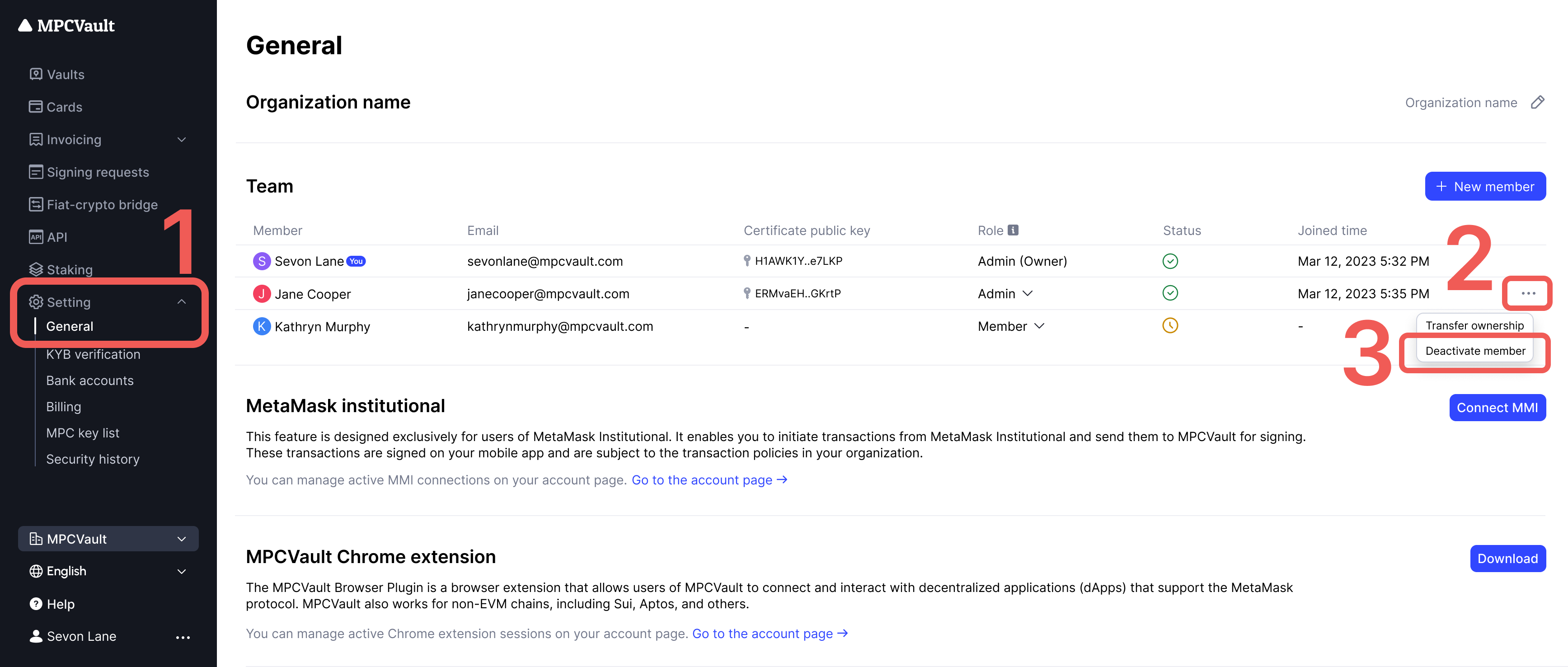
1. Visit [console.mpcvault.com](https://console.mpcvault.com/).
2. Go to **Settings**.
3. Find the member and click **...** > **Deactivate member**.
4. Confirm when prompted.
If you received an invitation but don't see the organization listed, try switching networks or restarting the app.
## Deactivating a Member
Deactivated members cannot log in to your organization. This does not change vault signing policies—ensure the member has transferred any necessary rights first.
1. Visit [console.mpcvault.com](https://console.mpcvault.com/).
2. Go to **Settings**.
3. Find the member and click **...** > **Deactivate member**.
4. Confirm when prompted.
 Only admins can deactivate members. The organization owner cannot be deactivated.