> ## Documentation Index
> Fetch the complete documentation index at: https://docs.mpcvault.com/llms.txt
> Use this file to discover all available pages before exploring further.
# Create an Organization
> Set up your team workspace in MPCVault.
Before creating an organization, you must register and generate a personal key certificate.
## Steps
1. **Name your organization** — This name will be visible to all members.
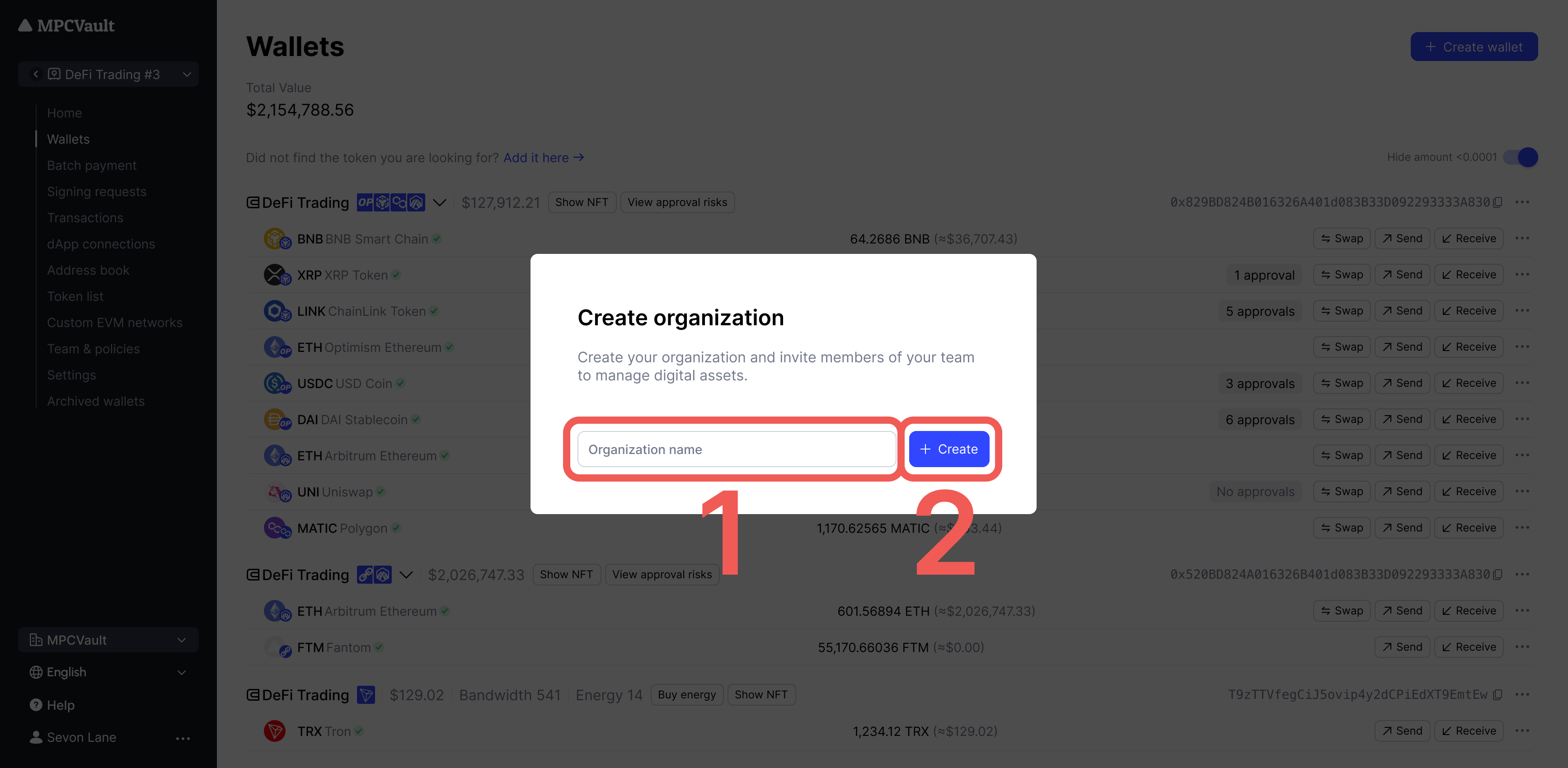 2. **Complete the questionnaire** — Answer questions about your use case.
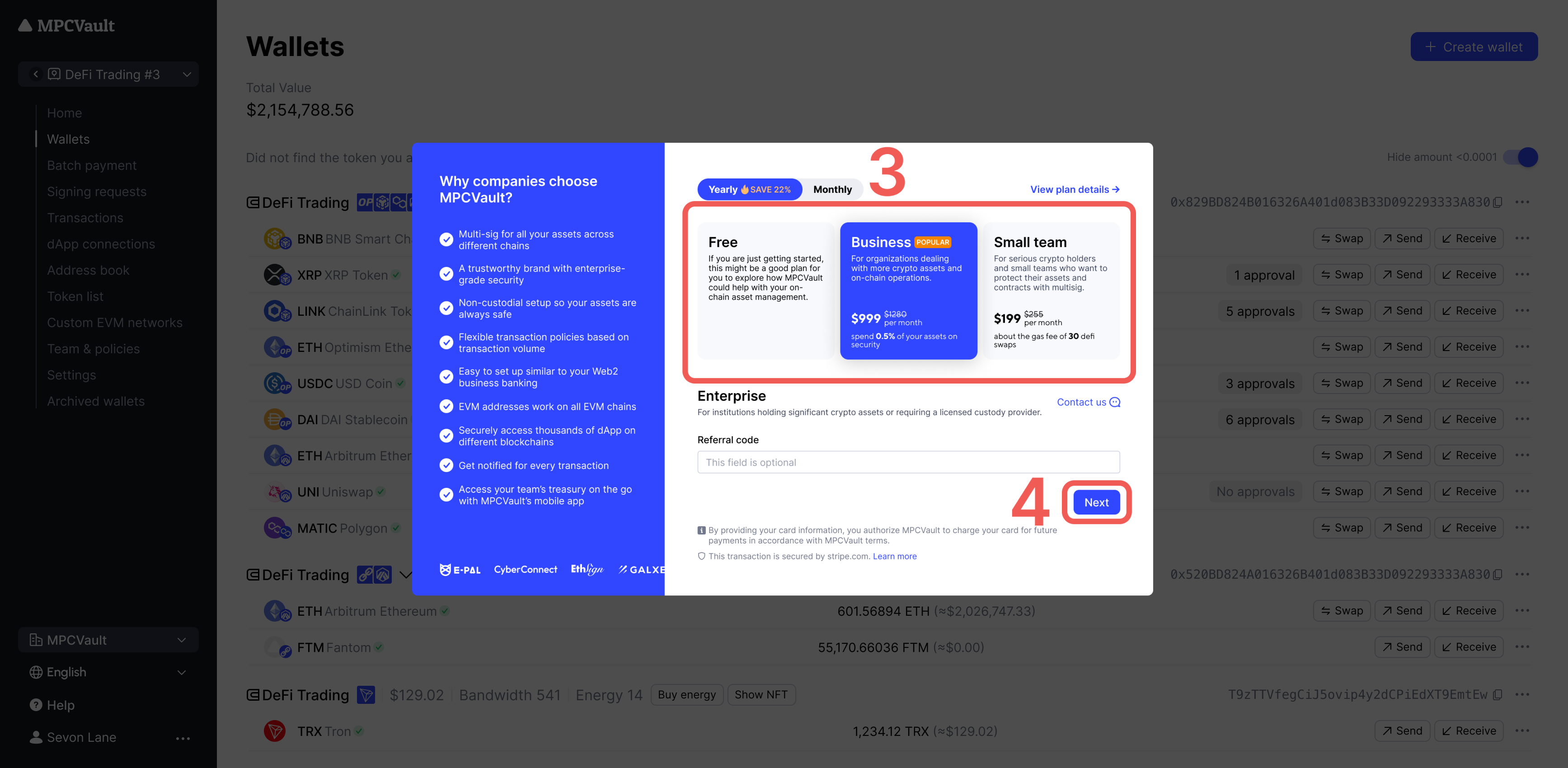
3. **Select a plan** — Choose the plan that fits your needs and subscribe to activate.
2. **Complete the questionnaire** — Answer questions about your use case.
3. **Select a plan** — Choose the plan that fits your needs and subscribe to activate.
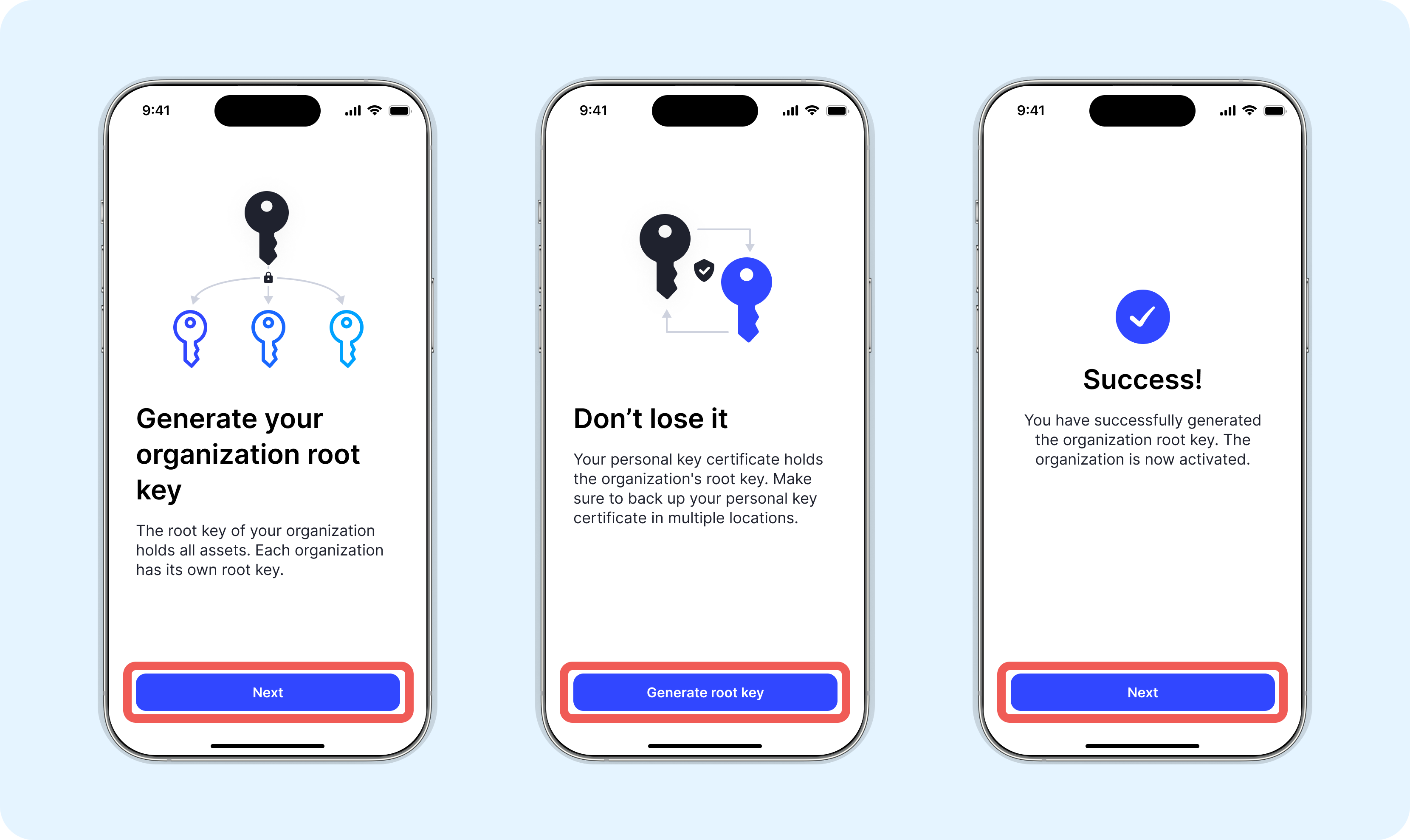
 4. **Generate your MPC root key** — Follow the on-screen instructions on your phone. This key secures your organization's crypto assets.
 You can also create an organization from **My Account** in the console after backing up your personal key certificate. You can only set up one organization at a time.